
How to make Irregular Footing in Tekla Structures

 Tekla Structures is a Building Information Modeling (BIM) software able to model structures that incorporate different kinds of building materials, including steel, concrete, timber and glass. However it is widely used for the detailing of structural drawing. 

In this blog, we are going to discuss how we can make irregular shape of pad footing in Tekla Structures.  So let's start the step by step procedure.

Step 1: Go to concrete -> Footing -> Pad Footing

Step 2: Insert a footing on your grid line.

Step 3: Go to Edit -> Construction Object -> Lines

Step 4: Draw the construction lines on the grid in the desired direction so that you can trim the object in the shape you want
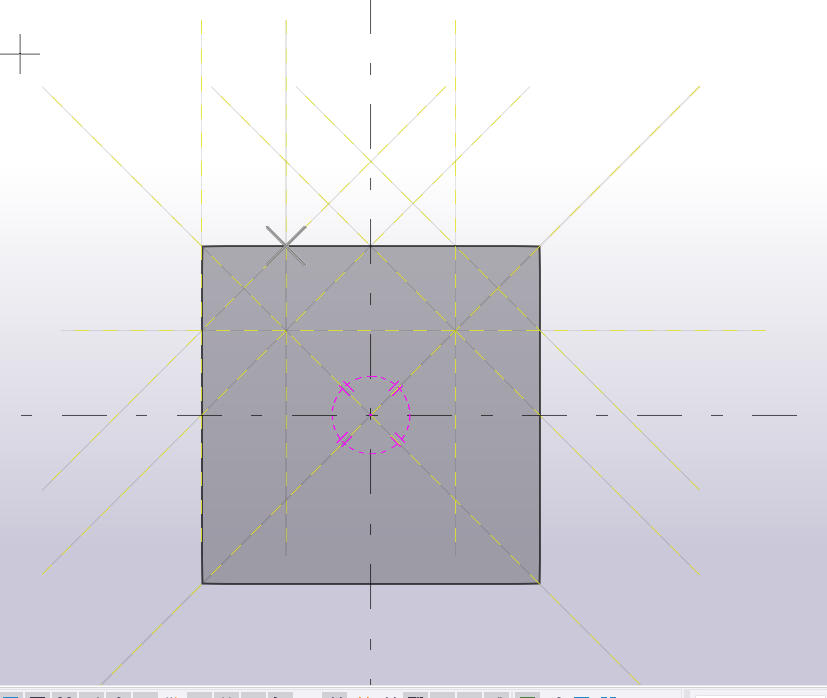
Step 5: Once done with drawing the lines go to Edit -> Polygon Cut and simply mark and cut the portion that you don’t want. 
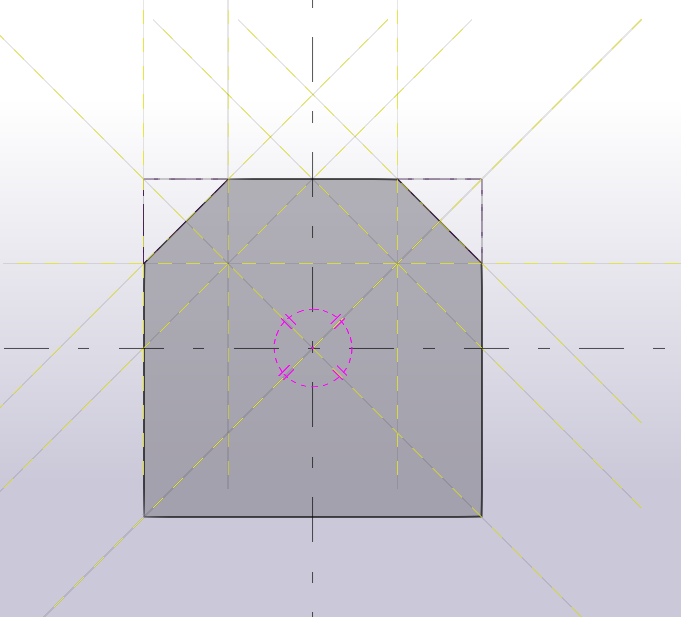
Step 6: Delete the construction lines after you get the proper shape to your footing. 
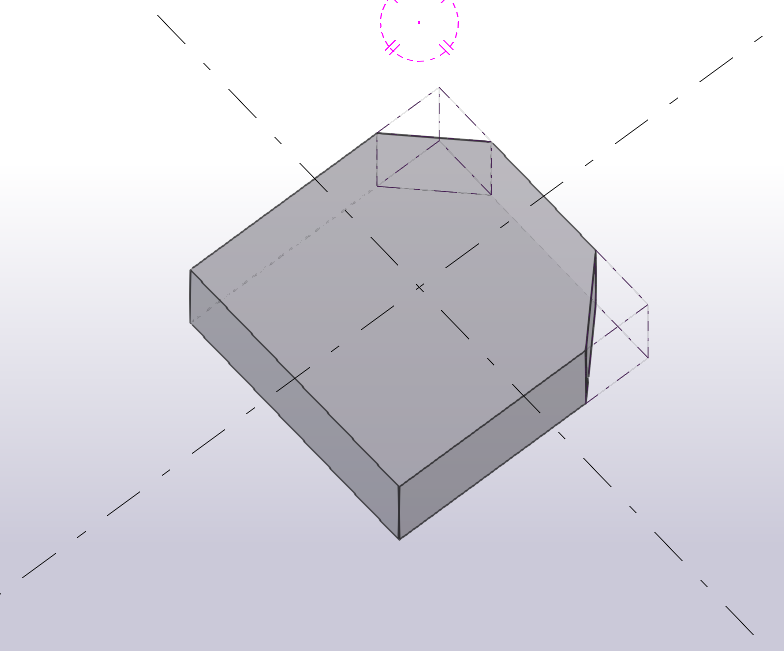

To know in detail, watch this video: https://youtu.be/DzKFFeCy5H8

About us: Civil Center is a Civil Engineering Consultancy company which provides services ranging from Building Consultancy Services like Architectural Plan, Structural Drawing, Estimation, 3D Views of Interior and Exterior of a Building, Construction Planning and Management, and also other services like Survey Investigation Works.


We also provide industrial Training to Civil Engineering Students as well as professionals which include courses on Building Design, Detailing Estimation, 3D Modelling and Survey  by using Software like STAAD. Pro, Tekla Structural Designer, Revit Structures, Tekla Structures, MS Excel, E-Survey. In training our goal is to make our trainees ready for the industry by getting them trained in Live Projects. We also provide placement assistance to our trainees.

To join our live classes on Tekla Structural Designer and other courses related to Civil Engineering, click here : https://forms.gle/Yy9j8BH8zZzmFfZMA

For any query 

Call on: 8433248864

WhatsApp: +91 6372905201

Email: team@civilcenter.in


If you have any requirement of Building Consultancy Services like Architectural Plan, Structural Drawings etc., register using the link given below

https://forms.gle/M4MTqgcLP6ZEp4rs7

Whatsapp: +91 6372905201

Email: enquiry@civilcenter.in

Visit our Website: http://www.civilcenter.in/


Visit our Website: http://www.civilcenter.in/


You Can Find Us On Other Social Media

Follow us on Telegram :https://t.me/civilcenter17

Visit our Facebook Page: https://www.facebook.com/civilcenter/

Visit our LinkedIn Page: https://www.linkedin.com/company/civil-center

Follow our Twitter Handle: https://twitter.com/_CivilCenter

Follow us on Instagram: https://www.instagram.com/civilcenter17/

Comments

Popular posts from this blog

How to Reset the Windows Layout/Missing Properties Bar in Tekla Structural Designer

  Any User of Tekla Structural Designer or any other software is used to the default format that is present while you install the software, the same is in the case of WIndows Layout in Tekla Structural Designer. In this blog we will show you how to restore the arrangement of menu bars if for any reason it has been misplaced or any particular menu like the properties or scene content is missing as you can see in the image below that the arrangement of menus is hotchpotch.  Let's look at the steps to restore the Windows Layout Under Home Go to “ Settings ” Click on “ Open Folder ” Click on the Version name (In this case it is Version 20.0/TSD 2020) Folder containing 2 nos. Xml files open (Dock Layout & QAT Commands) Close Tekla Structural Designer.This step is very important otherwise the process won’t work. Delete the two XML Files Open Tekla Structural Designer, you will find that all the menus have been restored. Hope these steps worked for you, you can also check out our...

How to Modify User Interface of Tekla Structures

  Tekla Structures is a building information modeling software able to model structures that incorporate different kinds of building materials, including steel, concrete, timber and glass. However it is widely used for the detailing of structural drawing.  In a detailing software like Tekla Structures, it is very useful we can import the plan or the gridline of the beam column plane directly, as it helps us to assign the elements of the structure which we are going to make in Tekla Structures. In this blog, we are going to discuss how we can modify User Interface in Tekla Structures. So let's start the step by step procedure. To change the size of icons in toolbar and font size in Ribbon Step 1: Go to file  Step 2: Select Settings Step 3: There you will find and option of User Interface Step 4: To change the size of icons of the toolbar you have three options of small, medium and large. You can choose any according to your requirement Step 5: To change the font size of R...

3D Render and Animations in Tekla Structures

  Tekla Structures is a Building Information Modeling (BIM) software able to model structures that incorporate different kinds of building materials, including steel, concrete, timber and glass. However it is widely used for the detailing of structural drawing.  In this blog, we are going to discuss how we can take out 3D render and animations in Tekla structures.  So let's start the step by step procedure. Step 1: First of all you will have to install Visualizer tools in Tekla Structure. You can get these apps from the website of trimble. Step 2: After your installation is complete you will have to restart your Tekla so that it can work smoothly.  Step 3: Go to the application and component section and search visualize. Step 4: You will find 3 options over there viz. Visualize all, Visualize selected, and Visualize material type mapping. Step 5: Visualize all will take out the render of the whole model. Visualize selected will take out the render of only the select...